Inspect in QGIS
Connect
- In the Browser panel, right-click STAC and choose New STAC Connection.
-
Enter the root catalogue URL:
-
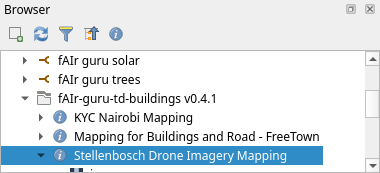
Expand a dataset. Each Tasking Manager project is one item.
Load a project
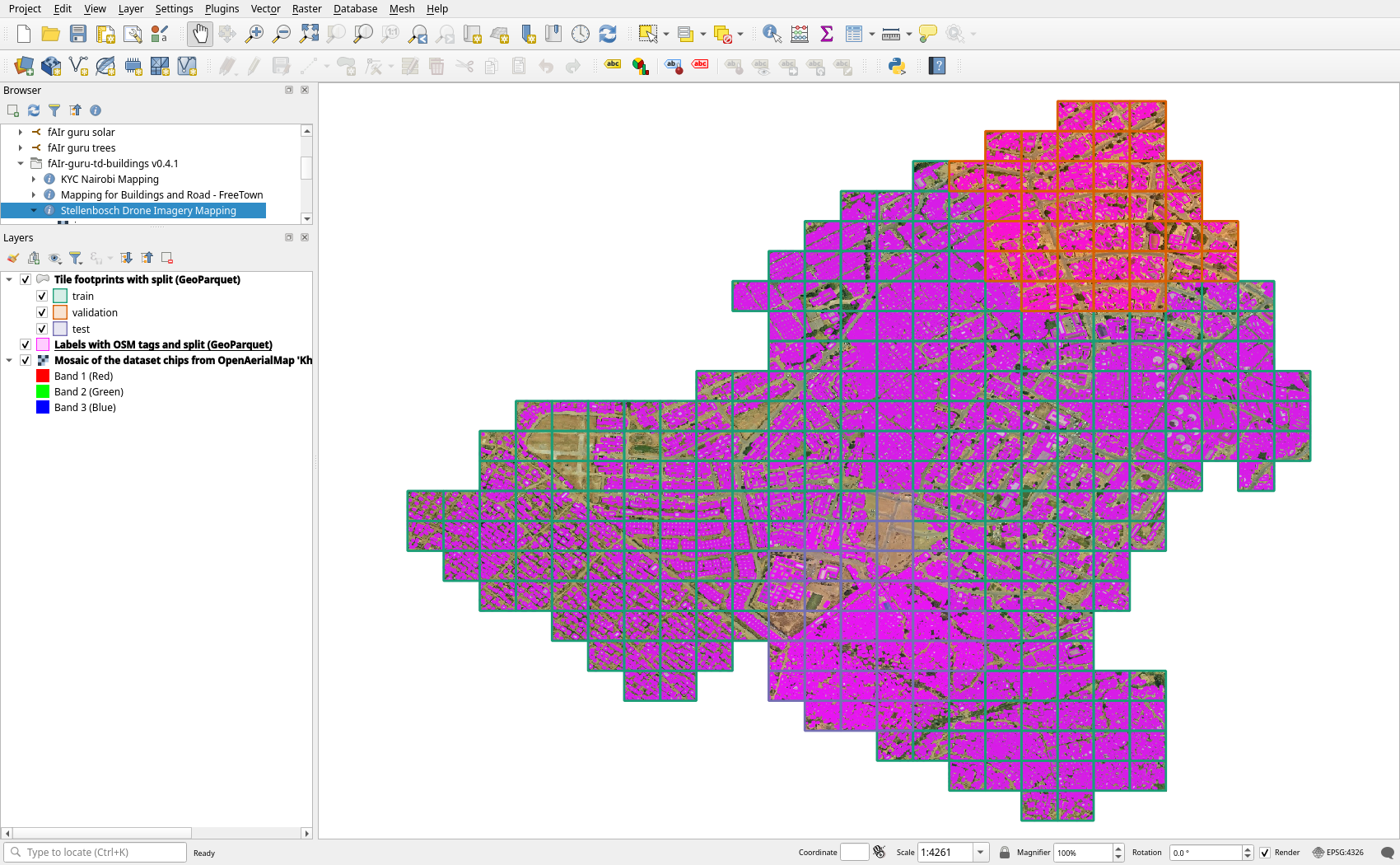
Drag the project's item onto the map. From QGIS 4.0 this adds the imagery, and the GeoParquet labels and tiles (source). In QGIS 3.44 it adds the imagery (source); add the labels and tiles with Layer > Add Layer > Add Vector Layer, Protocol: HTTP(S), and the asset URL.
Show the splits
In the tiles layer's Symbology, choose Categorized by split and Classify.
Read the attributes
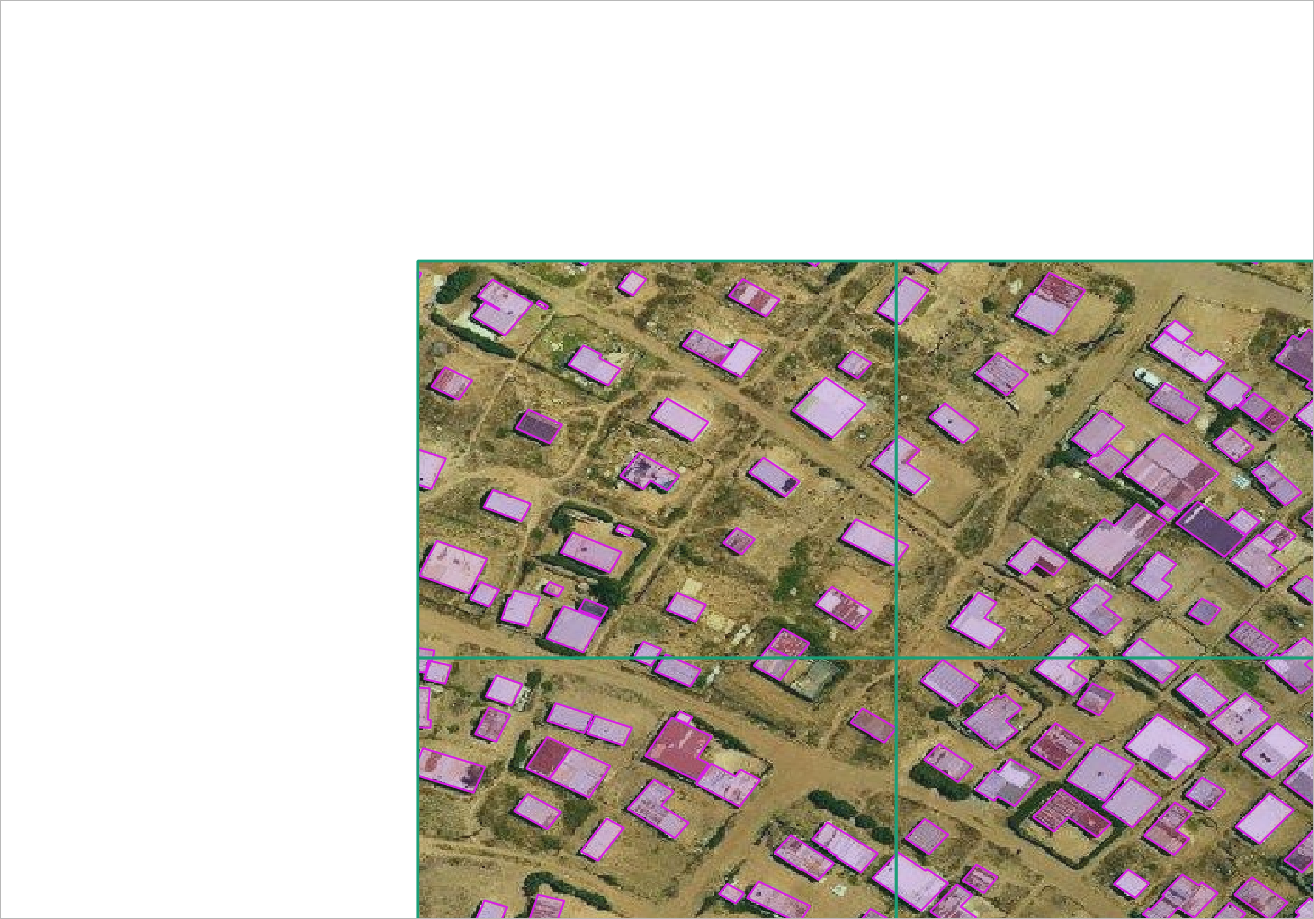
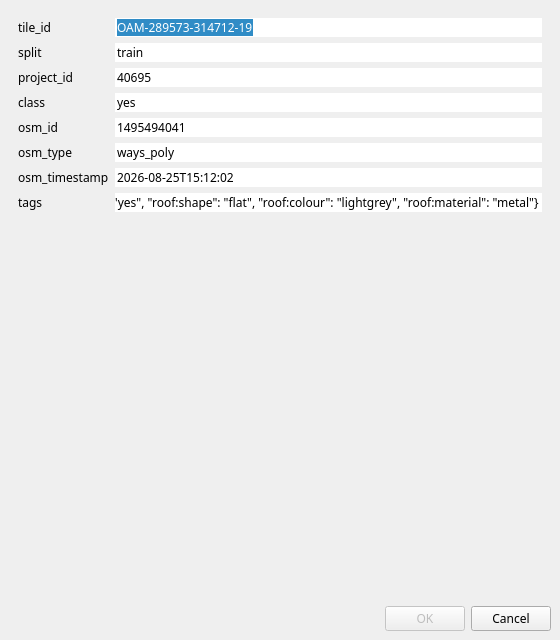
Identify Features on a label shows its tile, split, project, class, OSM id and tags:
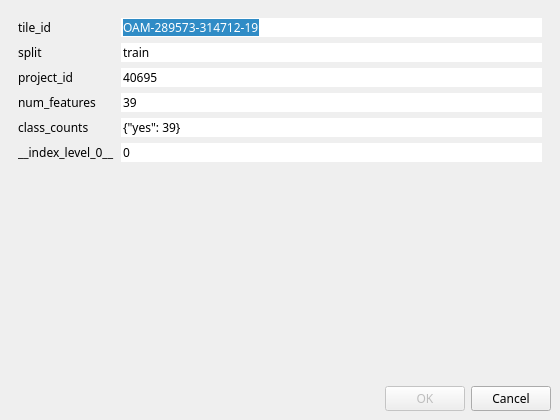
A tile shows its split, label count and classes:
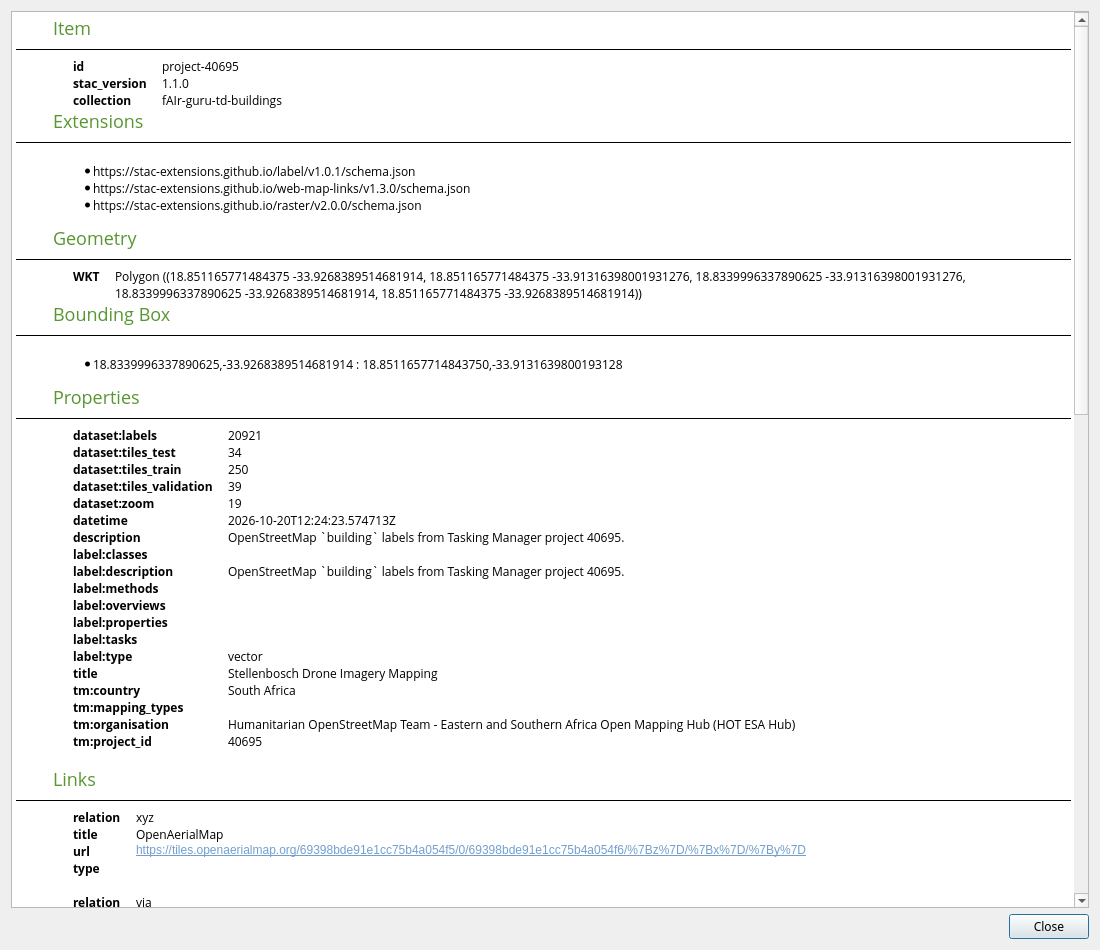
Details on an item shows its STAC metadata. QGIS 3.44 and 4.2 leave list fields such as
label:classes blank there.